
The Wiki at a glance
For anyone opening the wiki for the first time. The Wiki page is the home of your internal pages: what changed recently, what is pinned, and a sidebar that holds every knowledge base, folder and page.
Open the wiki
- Choose Navigation → Wiki in the top menu. The menu describes it as Internal knowledge base.
- You can make the wiki your home page in your profile settings.
- From anywhere in BlueHill, press ⌘K (or Ctrl+K) and type a page name. Wiki results are grouped under Wiki pages. See Search from anywhere.
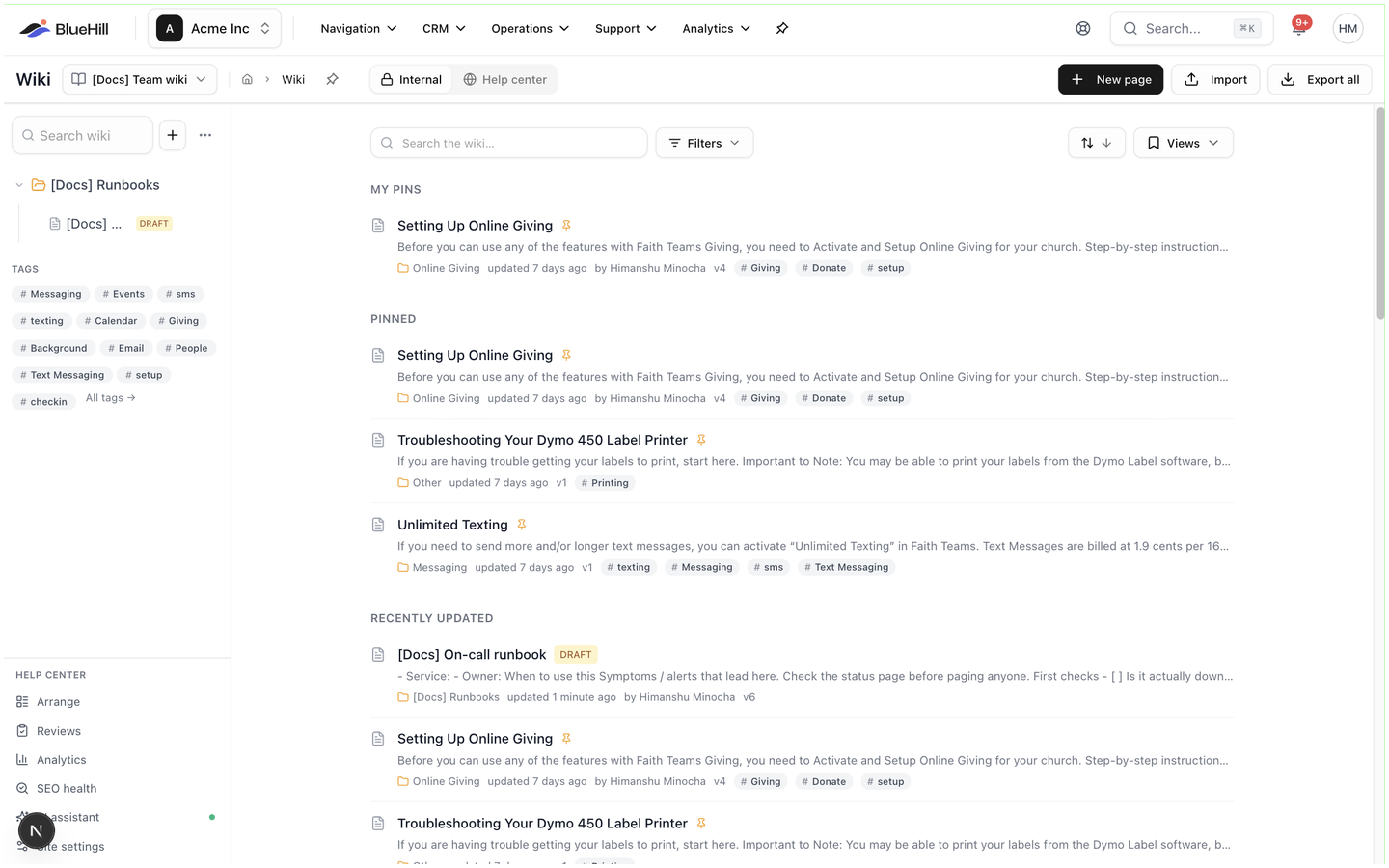
The header
The header shows, from left to right:
- The title Wiki and, right after it, the knowledge base switcher. It names the knowledge base you are working in, with a book icon for an internal one and a globe for a public one. See Switch knowledge base.
- If your workspace has a public help center, a pair of tabs, Internal and Help center. Internal is the wiki as your team uses it and is what these guides describe. Help center is the dashboard for the public site and is covered in the Help Center guides. The tab you choose is remembered in your browser.
- On the right, New page, Import and Export all. New page opens an empty editor; Import opens the import page; Export all downloads every page as a zip of markdown files. See Create a page and Import and export.
The toolbar
Above the page list:
- Search the wiki… finds pages as you type. See Search from the sidebar.
- Filters opens a small panel with one filter, Owner, set to Any until you pick My pages or a teammate. Clear all resets it and Save as view keeps it.
- The sort button (two arrows) opens a menu with Sort by (Last updated, Title or Date created) and Order (for example Recently updated or Least recently updated). The default is Last updated, most recent first.
- Views saves the current owner filter and sort under a name so you can reapply them with one click.
A banner just below the toolbar, N broken wiki links — review, appears only when a page links to a page that does not exist. See Broken links.
Pins and the page list
- My pins lists the pages you pinned for yourself. It appears only when you have some, and it ignores the owner filter.
- Pinned lists the pages pinned for everyone in the workspace.
- Below them, the page list follows the sort you chose; its heading says so, for example Recently updated or Title A–Z. It shows up to 25 pages from across your knowledge bases; only the sidebar tree is limited to the active one.
Each row shows the page title, a pin icon when it is pinned, a draft or archived chip when the page is not published, the first line of the page, then the folder it lives in, when and by whom it was last updated, its version number and its tags. Sample pages created by BlueHill carry an Example badge.
When a knowledge base has no pages at all, the list is replaced by Start your wiki, with a New page button and a link to the setup guide. See Pins for how to pin a page.
The sidebar
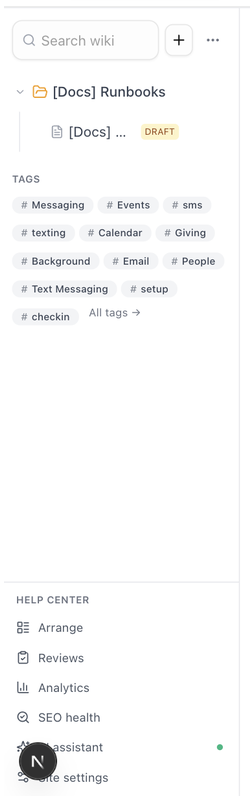
The sidebar on the left stays with you on every wiki page.
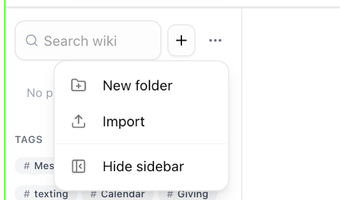
- The top row holds Search wiki, a + button (New page, which opens the template picker) and a ⋯ button (More) with New folder, Import and Hide sidebar.
 - When the active knowledge base is public, a strip reads **Public · N live · N drafts** with the help center's address. Clicking it switches to the **Help center** tab.
- The **page tree** lists folders first, then pages. Subpages sit indented under their parent, and archived pages collect in a collapsed **Archived (N)** group at the bottom. Hover a row for its **⋮** menu. See [The page tree](./wiki-knowledge-bases-and-folders#the-page-tree).
- **Tags** shows the twelve most-used tags in the workspace; click one to see its pages, or **All tags →** for the rest. The **Tags** heading opens the tag management page. See [Tags](./wiki-find-pages#tags).
- The footer holds **Reviews** (with the number waiting on you) and **Analytics**. Workspaces with a help center see them under a **Help center** heading together with **Arrange**, **SEO health**, **AI assistant** and **Site settings**, and a **N broken links** item appears when there are any. The analytics and the help center tools are described in the Help Center guides.
- When the active knowledge base is public, a strip reads **Public · N live · N drafts** with the help center's address. Clicking it switches to the **Help center** tab.
- The **page tree** lists folders first, then pages. Subpages sit indented under their parent, and archived pages collect in a collapsed **Archived (N)** group at the bottom. Hover a row for its **⋮** menu. See [The page tree](./wiki-knowledge-bases-and-folders#the-page-tree).
- **Tags** shows the twelve most-used tags in the workspace; click one to see its pages, or **All tags →** for the rest. The **Tags** heading opens the tag management page. See [Tags](./wiki-find-pages#tags).
- The footer holds **Reviews** (with the number waiting on you) and **Analytics**. Workspaces with a help center see them under a **Help center** heading together with **Arrange**, **SEO health**, **AI assistant** and **Site settings**, and a **N broken links** item appears when there are any. The analytics and the help center tools are described in the Help Center guides.
Drag the sidebar's right edge to make it wider or narrower, and double-click the edge to reset it. Hide sidebar collapses it to a single Show pages button.
On the mobile app
The BlueHill mobile app's Wiki tab has three views: Home (pins and the sorted page list, with sort and owner chips), Tree (the folders and pages of one knowledge base, with a knowledge base picker and New folder) and Tags. The header offers Search, New page and Wiki tools, which collects Reviews, Tags, Knowledge bases, Broken links, Analytics, Import, Export everything (.zip) and Help center. Reading, commenting and editing work the same way as on the web.