
Import and export
For anyone moving a knowledge base into BlueHill from Slab, Freshdesk or a folder of markdown files, and for anyone who wants a copy of everything.
The Import page
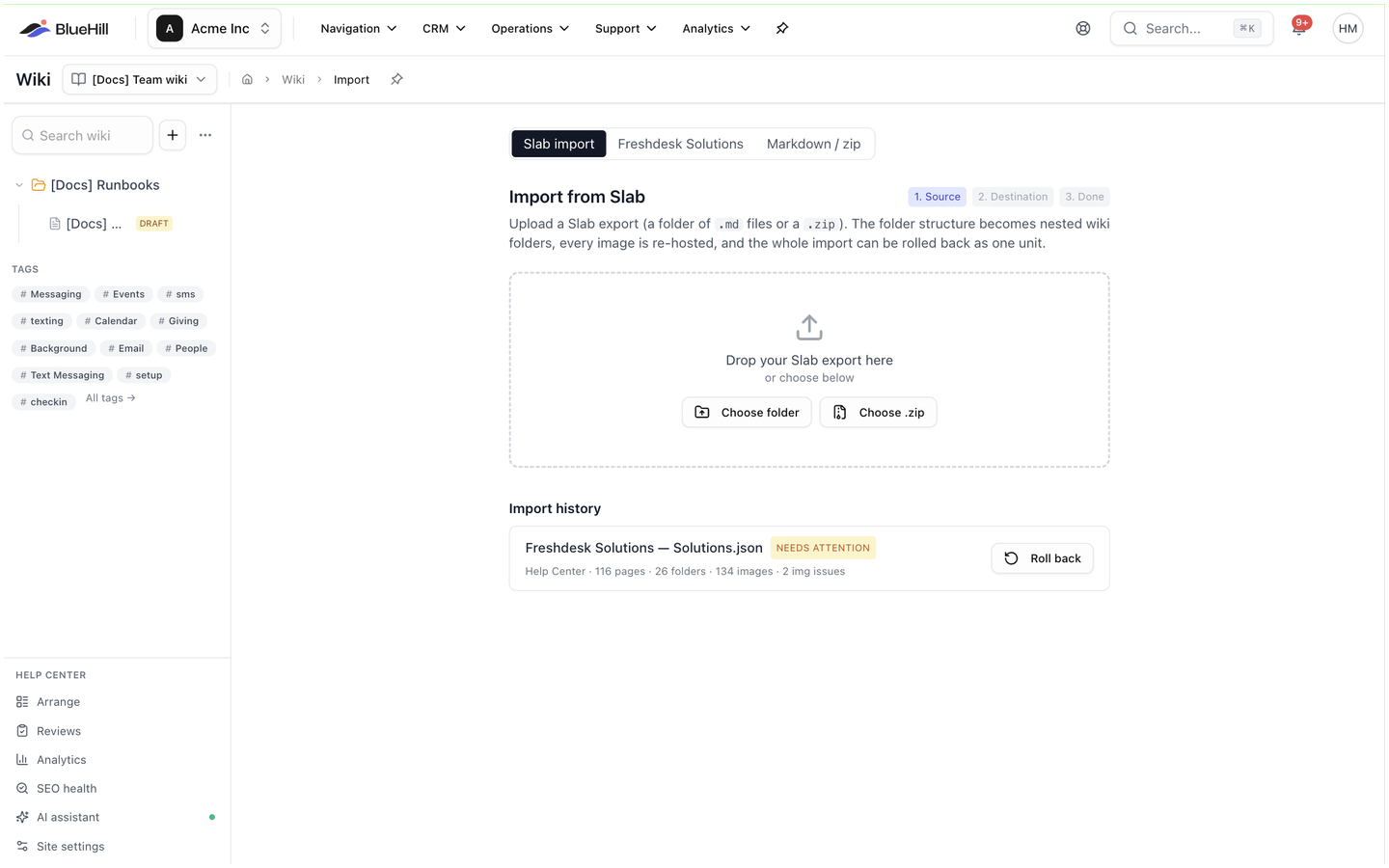
Click Import in the Wiki page header, or choose Import from the sidebar's ⋯ menu. The page has three tabs: Slab import, Freshdesk Solutions and Markdown / zip. Every import is recorded under Import history so it can be rolled back as a whole.
Import from Slab
The Slab importer keeps your folder structure, re-hosts every image and can be undone in one step. Export your Slab workspace first; it arrives as a folder of markdown files or a zip of them.
- On 1. Source, drop the export onto Drop your Slab export here, or use Choose folder or Choose .zip.
- On 2. Destination, choose where the pages go:
- Create a new knowledge base and name it (for example Slab Import), or Add to an existing knowledge base and pick one.
- Place under folder: puts the imported folders inside a folder of your choice. Leave it empty to import at the top level.
- Make these images publicly accessible is off by default, which keeps the images private to signed-in members. Turn it on only for content that will be served on a public help center.
- Click Start import. Progress shows as N / N pages · N images · N issues while images are re-hosted; large exports take a few minutes.
- 3. Done shows the Import report: pages, folders and images imported, any images that could not be fetched (a placeholder is inserted in their place) and pages skipped because a page with the same address already existed. Import another starts again; Roll back this import removes everything it created.
Import a Freshdesk knowledge base
The Freshdesk importer turns a Freshdesk Solutions export into a knowledge base: categories become folders, articles become pages, and published state, tags, search metadata and dates carry over. Images are re-hosted and YouTube or Vimeo embeds are kept.
- Export your Solutions from Freshdesk and drop the Solutions.json file onto Drop Solutions.json here. The page reports N articles in N folders across N categories.
- Under Destination, keep New knowledge base… (named Help Center by default) or pick an existing knowledge base. If you run more than one help center, pick the Help-center site the articles belong to.
- Publish to the help center is ticked by default: it makes the knowledge base public and stores the images publicly so articles work for signed-out visitors. Untick it for an internal-only import. Feature the 3 most-read articles is off by default.
- Read What this import will do. It says how many articles are new, how many already exist and are skipped, and how many land as drafts because they were unpublished in Freshdesk.
- Click Import N articles. You can leave the page; the import continues in the background.
When it finishes, the page shows the counts and offers Open the wiki, Help center settings and Roll back.
Import markdown files or a zip
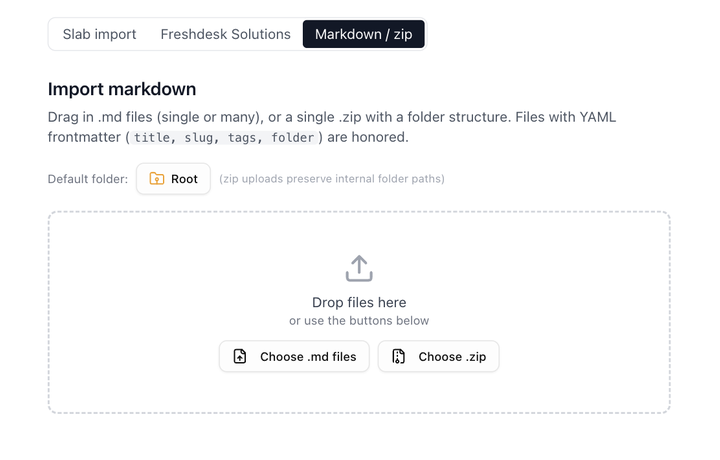
Use this tab for pages written elsewhere as markdown.
- Pick a Default folder: for the pages, or leave it as the top level. A zip keeps its own folder structure.
- Drop the files onto Drop files here, or use Choose .md files (markdown or plain-text files, one or many) or Choose .zip.
- The import runs at once and reports how many pages were created, skipped and had errors.
If a file starts with a front-matter block naming its title, slug, tags or folder, those values are used. Files without one take their title from the file name. Imported pages arrive as drafts in the active knowledge base.
Import history and roll back
Under the Slab and Freshdesk tabs, Import history lists every import with its status (completed, needs attention or rolled back), its knowledge base and its counts. Each has a Roll back button. Rolling back permanently deletes the pages, folders and images that import created, after a confirmation that names the counts; nothing else is touched. Use it when an import went into the wrong place or you want to redo it with different options.
Export
- Export all in the Wiki page header downloads wiki-export.zip: every page in every knowledge base, drafts and archived pages included, as markdown files in folders that mirror the wiki. Each file starts with the page's title, address, folder, tags and status, and image links point at the hosted images.
- Export as .md in a page's ⋯ menu downloads that one page as a markdown file.
An export from Export all can be imported again with the Markdown / zip tab, which is a simple way to copy pages between workspaces.
Next: FAQ and troubleshooting.