
Link pages to boards, tasks and tickets
For anyone who keeps the how-to next to the work: attach a runbook to a task, give every task on a board the same reference page, or drop a help article into a support reply.
Attach a page to a task
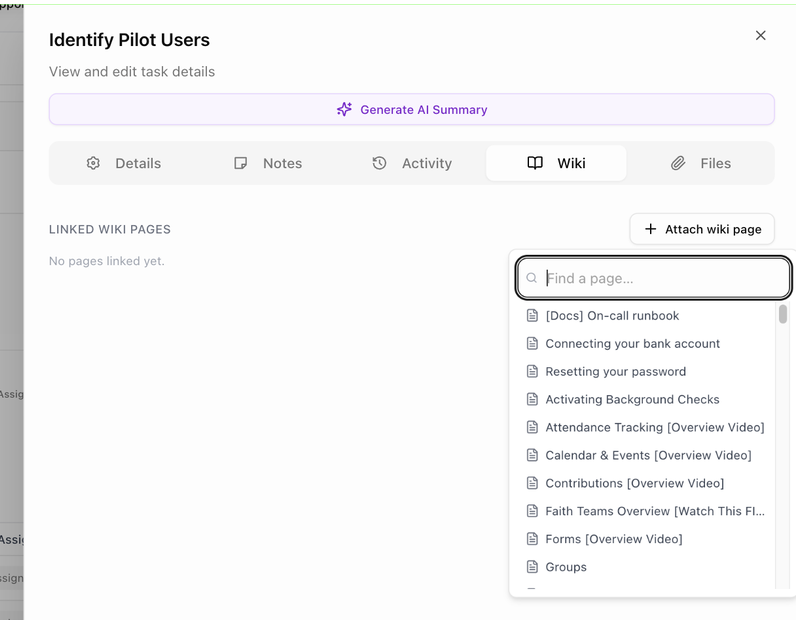
- On a board, choose View from the task's ⋮ menu to open the task panel, then its Wiki tab. (Linked wiki pages in the same menu opens the list in a dialog instead.)
- Under Linked wiki pages, click + Attach wiki page.
- Type in Find a page… or browse the tree, and click a page. Pages already attached are greyed out and marked attached.
The page is listed with its title; a DRAFT chip marks a page that is not published yet. Click the title to open it. To detach a page, hover its row and click the × (Remove link); there is no confirmation.
In the board's task table, the Wiki column shows a book icon with the number of linked pages on each task. Click it to open Linked wiki pages for that task.
Attach a page to a board
A page attached to a board is visible on every task in it.
- On the Boards page, choose Linked wiki pages from a board's ⋮ menu.
- Inside a board, open the board's details and choose its Wiki tab, Wiki pages on this board.
On each task, pages that come from the board are listed under From board: name and cannot be removed there; manage them on the board.
Pages on template tasks
A page attached to a template task, through the task's ⋮ → Linked wiki pages, is copied onto every task created from that template. Attach your standard checklists and procedures to the template once, and every new board gets them.
Insert an article into a support reply
In the support inbox, the reply composer's Article tool (Insert a help article) inserts a link to a published help center article:
- Click Article in the composer's footer.
- Type in Search … to find an article, or browse by Help centers and their categories. Suggested for this ticket lists articles that match the ticket's subject. Switch between one help center and All articles with the toggle.
- Click an article, or press Enter, to insert it. The link uses the article's title and points to the public help center page, and the article is also linked to the ticket.
Only published articles from a public knowledge base can be inserted; drafts and internal pages are listed but greyed out. The ticket's details rail then shows a Help articles card listing the linked articles, each with an Unlink article button.
See what links to a page
On the page itself, the Details rail keeps track of every connection:
- Linked work shows N tasks · N boards. Click it for the Linked from panel, which lists the Tasks, Boards and Template Tasks the page is attached to. Anyone with edit access can remove a link from here with its ×.
- Links shows N in · N out. Click it for Backlinks (N), the pages that link to this one with a `` link, and Outgoing (N), the pages this one links to. A link to a page that does not exist is listed in red as [[name (broken).
Broken links
A [[ link whose page has been renamed, deleted or never created is a broken link. In the page it is shown in red with a dotted underline. When a workspace has any, the sidebar footer shows N broken links and the Wiki page shows a banner, N broken wiki links — review. Both open the Broken wiki links report, which lists each missing address, how many times it is used and the page that uses it. Open that page, fix or remove the link, and save; when none are left the report says No broken wiki links. Nice.
Next: Import and export.