
Work with bookings
For hosts who check what is coming up, open a booking, or reschedule, follow up or cancel. The Bookings tab is where the Scheduling page opens.
Choose a view
The View control at the left of the toolbar switches between List, Day, Week and Month. The view and the date you are looking at are kept in the page address.
List
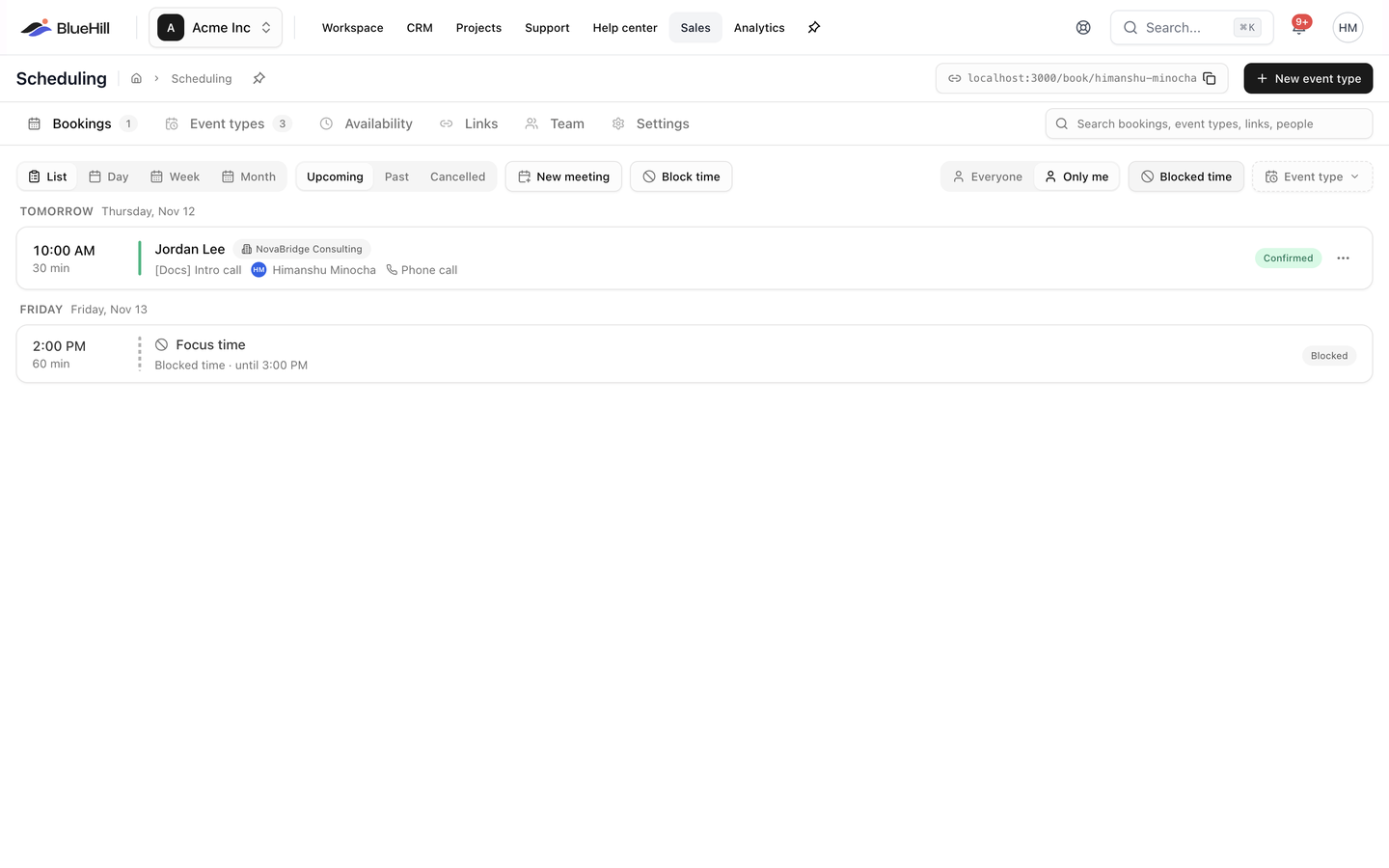
- Upcoming, Past and Cancelled choose which bookings you see. Upcoming runs from the nearest booking onward; Past and Cancelled show the most recent first.
- Bookings are grouped by day under headings such as Today, Tomorrow or Monday, Nov 10.
- Each row shows the start time and length, a colour bar in the event type's colour, the booker's name, a customer badge when the booking is linked to a customer, and a second line with the event type, the host (You for your own) and the location. On the right you may see an N answers badge for intake answers, the status badge, a Join button for Zoom and Google Meet bookings, and Details.
- A cancelled booking is struck through, with a grey bar and a Cancelled badge.
- Blocked time appears in the same list with a ban icon, its title (Blocked when it has none), a repeat icon when it recurs and a Blocked badge. Upcoming lists blocks for the next 60 days, Past for the last 30. Click Blocked time in the toolbar to hide or show them.
- With nothing to show, the list reads No upcoming bookings (or past, or cancelled) and explains that bookings made through your links, or scheduled from here, show up here and on your calendar.
Day and Week
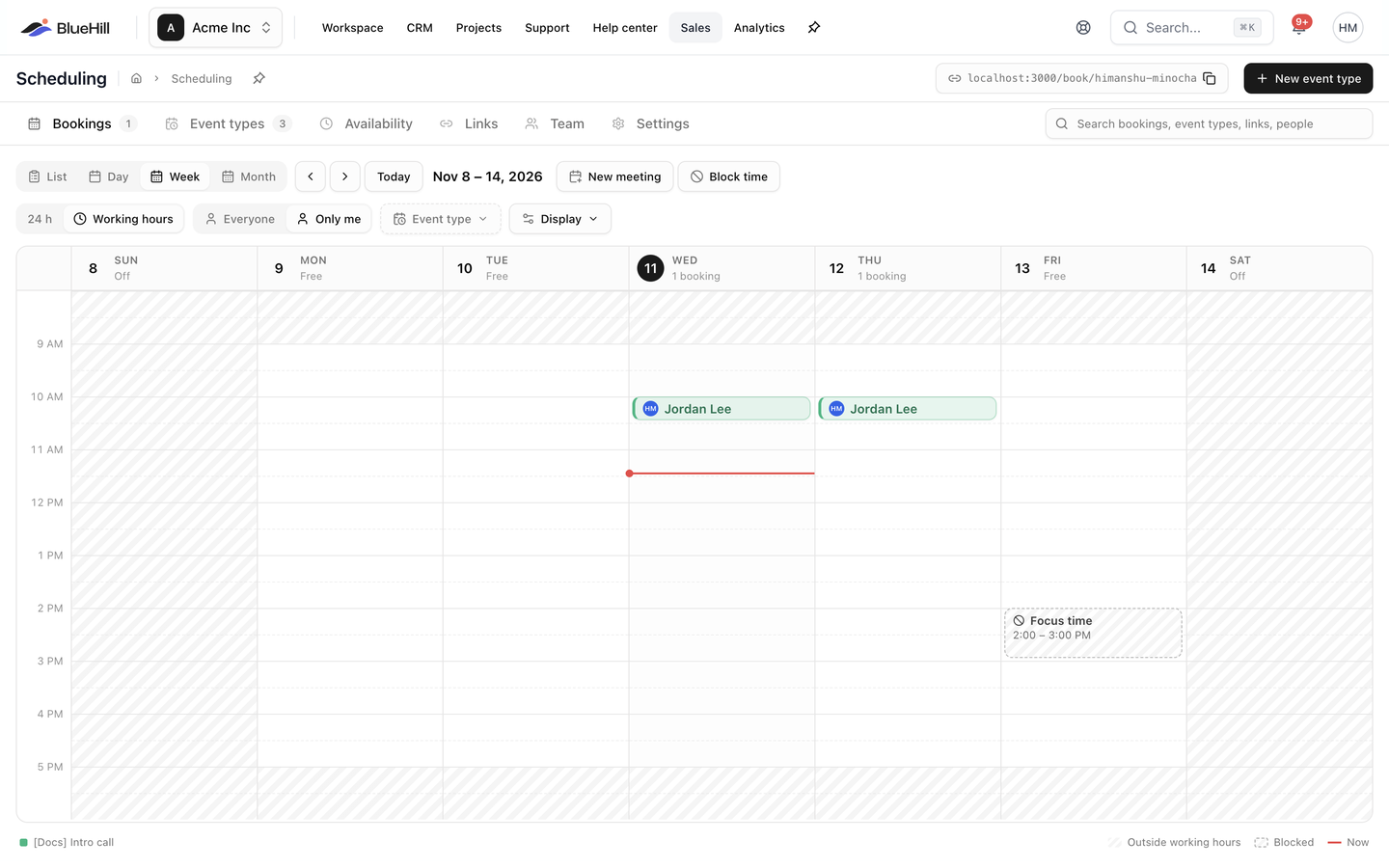
- The arrows and Today move through time; the label shows the day, week or month in view.
- Each column header shows the date, with today circled, and N bookings, Free or Off for a day with no working hours.
- Hour rows run down the grid. Today's column is tinted and a red line marks the current time. Diagonal stripes mark time outside your working hours.
- A booking is a block tinted in its event type's colour, showing the host and booker and, when there is room, the time, event type and location. Cancelled bookings are greyed and struck through.
- Blocked time is a striped box with a dashed border and a ban icon.
- 24 h shows the whole day; Working hours shows the span of your default schedule plus an hour either side. A booking outside that span still stretches the grid so nothing is hidden.
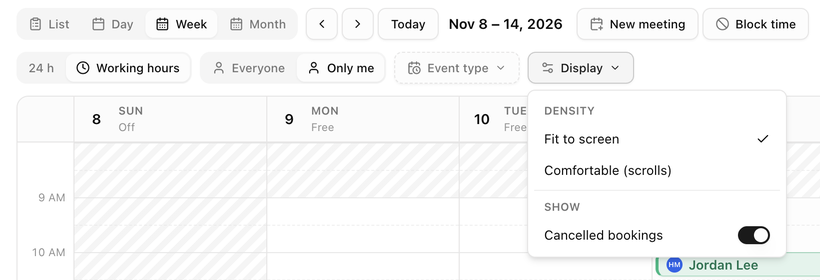
- Display holds Density, Fit to screen or Comfortable (scrolls), and a Cancelled bookings switch.
- Click an empty half hour, or drag across several, to schedule a meeting or block time there. See Schedule a meeting or block time.
The legend under the grid names each event type in view, Outside working hours, Blocked and Now.
Month
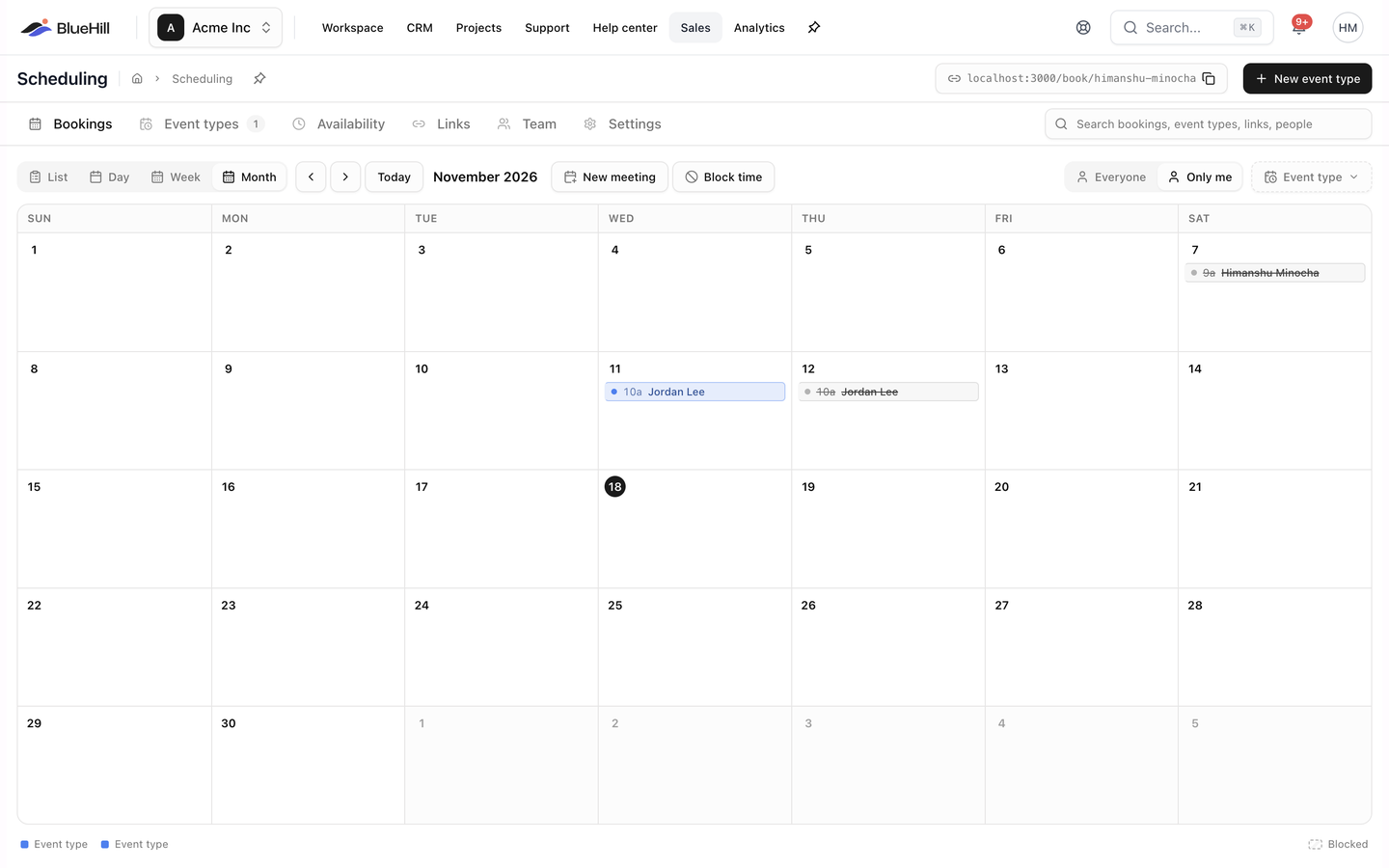
Each day shows up to three chips, blocks first: a colour dot, a short time such as 10a or 2:30p and the booker's name. Busy days add +N more and a total. Click a day to open it in Day view, or a chip to open the booking. Repeating blocks are left out of the month grid.
Filter what you see
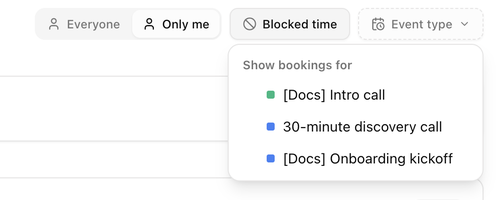
- Everyone | Only me appears when more than one person on your team can be booked. Only me is the default. With Everyone, every host's bookings and blocks are shown, each block labelled with its owner's name; the working-hours stripes apply only to Only me.
- Event type opens a Show bookings for list with a checkbox per event type. A count badge shows how many are ticked, and Clear filter resets it. When an event type filter leaves nothing, the list reads Nothing matches the event-type filter.
Your choices for hours shown, density, cancelled bookings and blocked time are remembered. The Upcoming, Past and Cancelled choice, the host switch and the event type filter reset when you come back.
Open a booking
Click a row, block or chip to open the booking drawer.
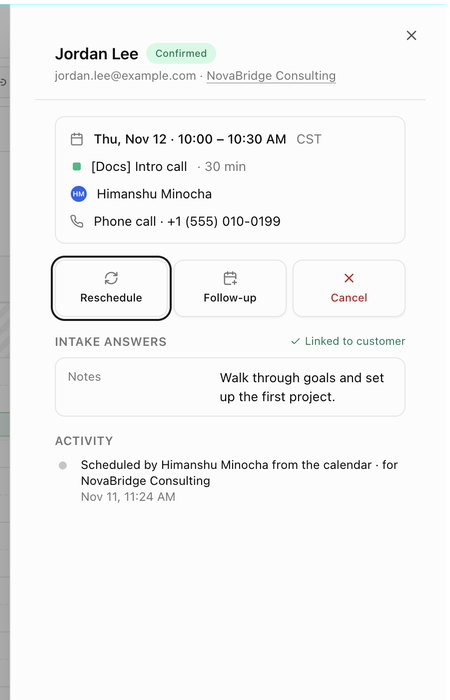
- The header shows the booker's name and the status badge, then their email and links to the linked customer, contact and support ticket when there are any.
- The summary card shows the date and time with the timezone, the event type and length, a brand chip when the event type belongs to a brand, the host and any co-hosts, and the location. Join opens the Zoom or Google Meet link. A booking that belongs to another host reads Managed by the host.
- Intake answers lists the form answers and the booker's notes, with Linked to customer when the booking is tied to a customer record.
- Guests lists the extra people the booker invited.
- Activity shows when the booking was cancelled or updated, and where it came from. See Where a booking came from.
Reschedule, follow up or cancel
The three action tiles appear only on bookings you host.
Reschedule
- Click Reschedule. It is available while the booking is upcoming and confirmed.
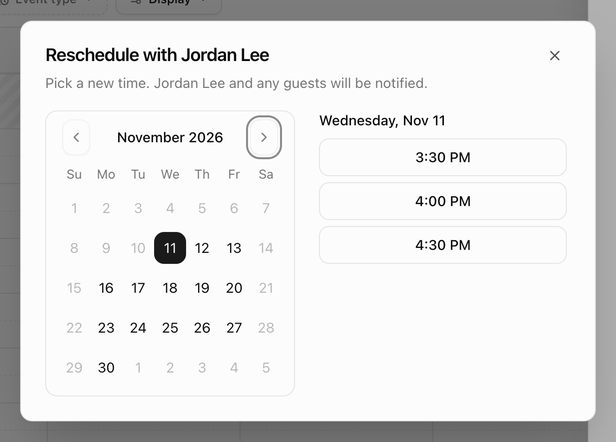
- In Reschedule with Name, pick a day in the calendar and a time from the list. Days with no open times are disabled, and the list reads No open times that day when a day is full.
- Picking a time reschedules at once and a Booking rescheduled message confirms it. The booker and any guests are notified.
Follow-up
Follow-up books a new meeting with the same person; it works on past bookings too. In Follow-up with Name, choose a Meeting type if you have more than one event type (it starts as the same one), then pick a day and time. A Follow-up booked message confirms it, and the new booking's Activity reads Booked as a follow-up to an earlier meeting.
Cancel
- Click Cancel. It is available while the booking is upcoming.
- The dialog Cancel this booking? explains that the booker will be notified and the meeting will be removed from your calendar.
- Click Cancel booking, or Keep it to go back. A Booking cancelled message confirms it.
A cancelled booking stays under Cancelled and cannot be restored. To meet after all, use Follow-up on it to book a new time.
Booking statuses
| Status | Meaning |
|---|---|
| Confirmed | Upcoming and not cancelled. |
| Completed | The end time has passed. |
| Cancelled | Cancelled by you or by the booker. |
Where a booking came from
The last line of Activity tells you how the booking was made:
| Line | Meaning |
|---|---|
| Booked on the booking page | The booker used your public page. matched to Customer means their email matched a customer record. |
| Booked through a customer link | The booker used a private customer link. See Customer links and embed. |
| Booked through the link sent on ticket … | The booker used a link an agent sent from a support ticket. |
| Booked by Host from ticket … | An agent booked it while replying to a ticket. |
| Scheduled by Host from the calendar | The host added it with New meeting on this tab. |
| Booked as a follow-up to an earlier meeting | Made with Follow-up. |