
What the booker sees
For anyone who wants to know what a customer goes through when they open a booking link, and which emails everyone receives afterwards. Bookers never sign in.
The booking page
A personal page at /book/your-handle lists your event types; an organization page at /book/your-organization lists the organization's; a brand page at /book/your-organization~brand lists those filed under the brand, with the brand's logo and colour.
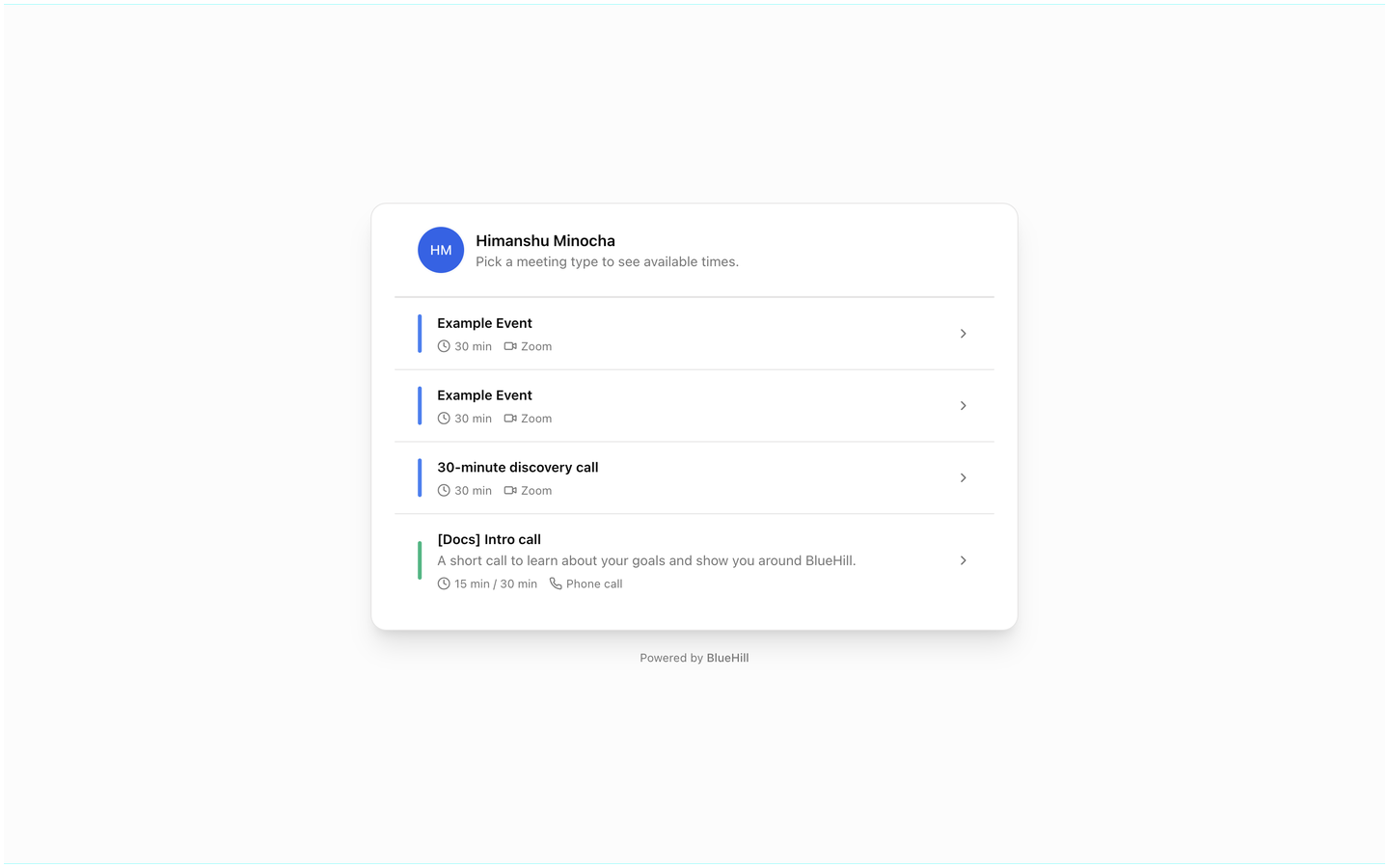
- A personal page shows your avatar and name with Pick a meeting type to see available times. A brand or organization page shows the logo, or a coloured tile with the name.
- Each event type shows its colour, title, description, the lengths on offer, the location and, for team event types, the hosts' avatars with a line such as Onboarding · 3 hosts.
- When nothing is accepting bookings, the page reads No meetings are open for booking right now. A wrong address reads This booking page doesn't exist.
- Every public page ends with Powered by BlueHill.
A link to one event type, such as /book/jane/intro-call, skips the list and opens the time picker straight away.
Pick a time
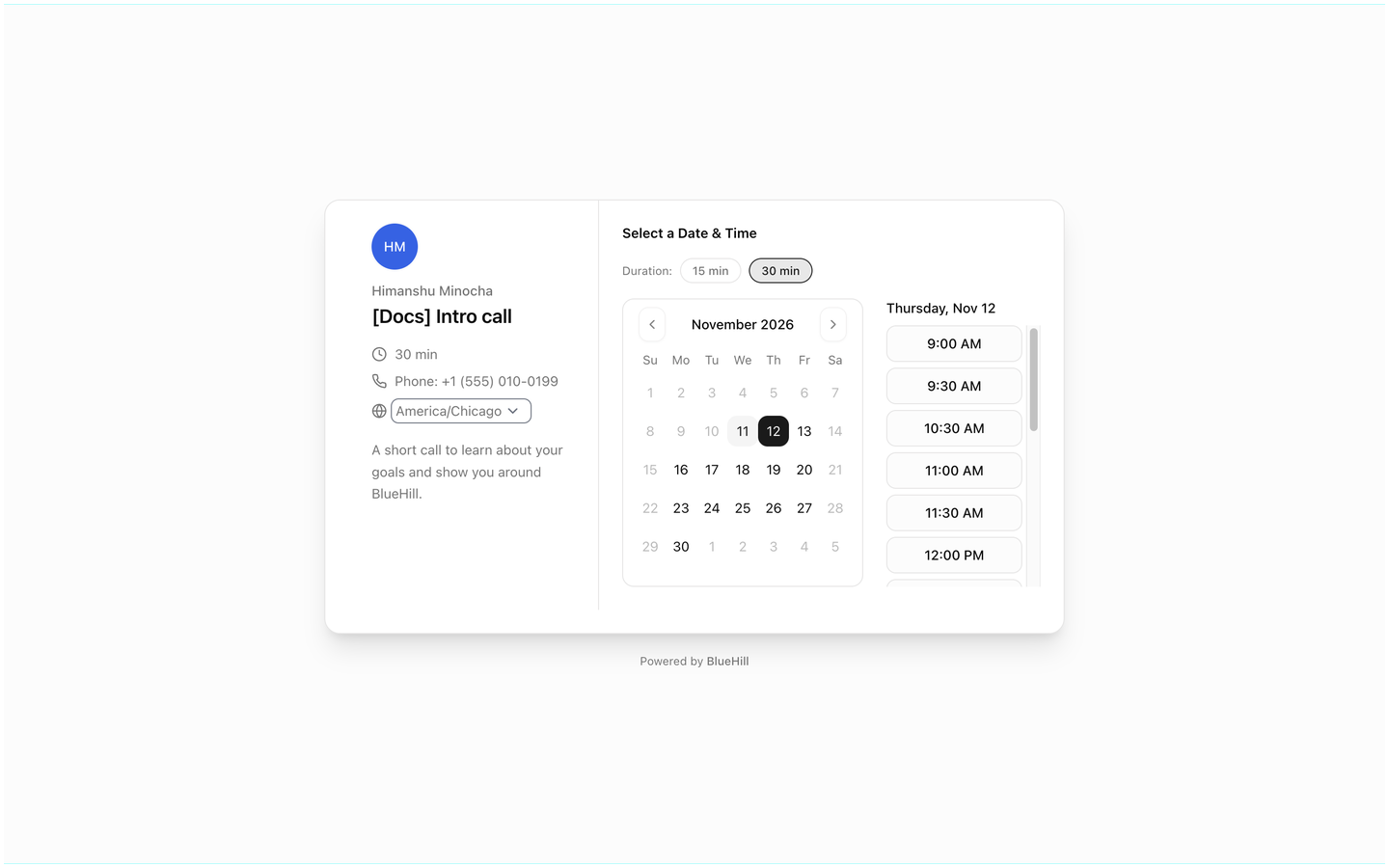
The left panel repeats the host, title, length, location and description, and shows the booker's timezone. It is detected from their browser and can be changed from a list of common zones; every time on the page follows it.
Under Select a Date & Time:
- If the event type lets bookers pick a host, Host chips offer Any host or each host by first name.
- If the event type offers several lengths, Duration chips let them choose.
- The month calendar disables past days and days with no open times, and selects the first available day.
- The list on the right shows the open times for that day, as 12-hour times such as 1:00 PM. A full day reads No open times that day.
Open times come from the host's schedule for that event type, minus bookings, blocked time, calendar events and Google Calendar busy time, after the event type's buffers, minimum notice, bookable window and daily limit are applied. See Hosting, schedule and limits.
Enter details
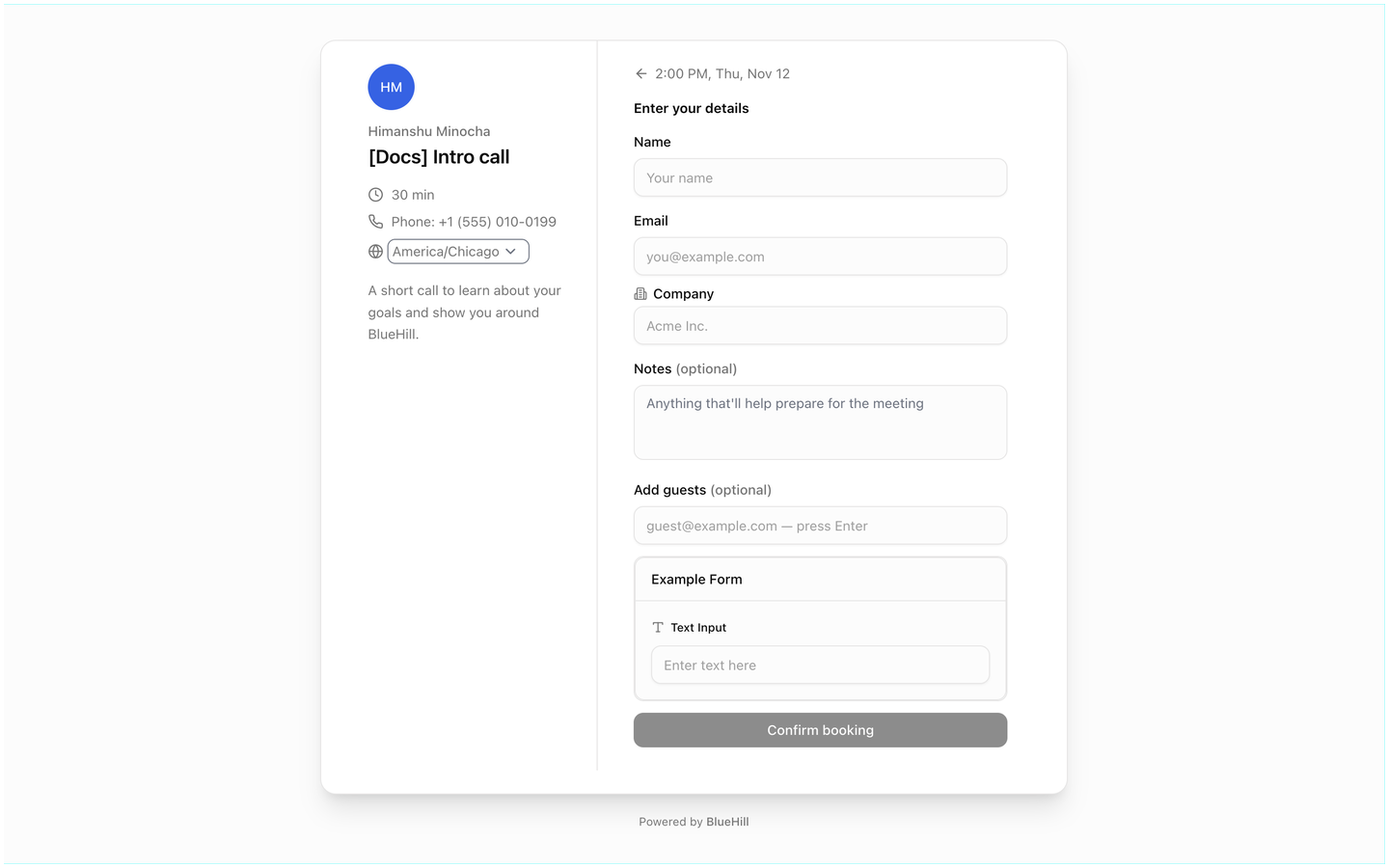
After picking a time, the booker fills in Enter your details:
| Field | When it appears |
|---|---|
| Name and Email | Always. Prefilled on a customer link. |
| Company | When the event type asks for a company name. |
| Where should you meet? | When the location is Ask the invitee. The booker types a phone number, address or link. |
| Notes (optional) | Always. |
| Add guests (optional) | Always. Each email typed and confirmed with Enter becomes a chip; guests receive an invitation. |
| Intake questions | When the event type uses a form. The questions appear below the standard fields. |
Confirm booking books the time. If someone else took that slot a moment earlier, the page says That time was just taken — please pick another slot. and the booker chooses again.
The confirmation
The confirmation screen reads You're booked! and repeats the event type, the host (and co-hosts for a collective meeting), the time and the location. Below it is your Confirmation message, or A confirmation has been emailed to … when you have none. A Join meeting button appears when the meeting is on Zoom or Google Meet. If the event type has a Redirect after booking, the page reads Redirecting you… and moves on after a moment.
The calendar invite is not downloaded from this screen. It arrives attached to the confirmation email.
Reschedule or cancel as a booker
The confirmation email's Manage booking button opens a page with the meeting's title and time, a Reschedule button (when the event type lets bookers reschedule) and a red Cancel booking button.
- Reschedule shows Pick a new time with the same calendar and time list. Picking a time reschedules at once; the page reads Rescheduled! with the new time and a join button when there is one.
- Cancel booking cancels at once, without a further prompt, and the page reads Booking cancelled.
A booker who cancels through a customer link frees up one use on that link. A booking that has already started cannot be rescheduled from this page (This booking can no longer be rescheduled.).
Emails and notifications
Emails come from the platform address, or from the brand address chosen under Emails come from on the event type, in which case they carry the brand's logo and colour. See Send emails from a brand address.
| When | Who receives it | What it says |
|---|---|---|
| A booking is made | The booker | Confirmed: Event with Host, the time in their timezone, the location and notes, a Join meeting or Manage booking button, and an invite.ics calendar file. |
| The host, and co-hosts for a collective meeting | New booking: Event with Booker, the booker's name and email, the time, location and notes, and the invite. A bell notification in BlueHill opens Scheduling. | |
| Each guest | Invitation: Event with Host, with the details and the invite. | |
| A booking is rescheduled | Booker, host, co-hosts and guests | Rescheduled: Event with Host with the new time and an updated invite. |
| A booking is cancelled | The other party: the host when the booker cancels, the booker when the host cancels, plus co-hosts | Booking cancelled with the time, and a cancellation for their calendar. |
A host who books a meeting themselves, with New meeting or from a ticket, receives no email or notification about it. BlueHill does not send reminder emails before a meeting; the calendar invite carries the event so each person's calendar can remind them.
Next: Meetings on the calendar, customer records and tickets.