
Hosting, schedule and limits
For anyone deciding who takes a meeting and when it can be booked. The Hosting and Schedule & limits sections of the event type editor.
Hosting
Hosting answers "who takes the meeting, and how it's assigned". Pick one of three cards.
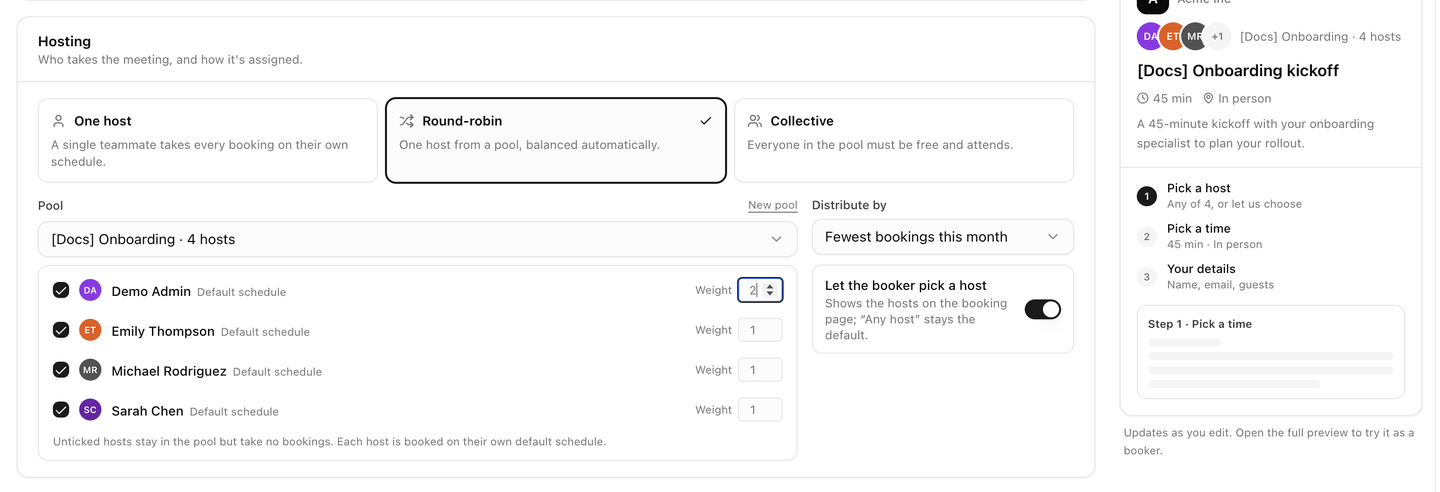
| Card | Meaning |
|---|---|
| Just you (personal) or One host (organization) | One person takes every booking on their own schedule. |
| Round-robin | One host from a pool, balanced automatically. Each booking goes to one member of the pool. |
| Collective | Everyone in the pool must be free and attends. One booking, several hosts. |
Round-robin and collective need a pool, which is a named group of teammates. Pools are managed on the Team tab. See Team and pools.
Just you or one host
- A personal event type is always hosted by you, on the schedule you pick under Schedule & limits.
- An organization event type has a Host picker. Each option shows the teammate's name and their schedule, for example Sarah Chen · Working hours, or No schedule yet. The summary row underneath shows the host, the schedule they will be booked on and whether their Google Calendar is connected.
- Any internal member can edit an organization event type, but bookings land on the host's calendar and Zoom.
Round-robin
- Choose Round-robin.
- Pick a Pool, or click New pool to create one without leaving the editor.
- In the member list, tick the hosts who should take bookings for this event type. Unticked hosts stay in the pool but take no bookings here.
- Give each ticked host a Weight from 1 to 100. A higher weight takes more bookings.
- Under Distribute by, choose how the next host is picked:
| Rule | Picks |
|---|---|
| Fewest bookings this month | The host with the least load this month on the pool's event types, per unit of weight. The default. |
| Fewest upcoming bookings | The host with the fewest bookings still to come. |
| Random (weighted) | A random host, with weights as odds. |
- Switch on Let the booker pick a host if bookers may choose a person. The booking page then lists the hosts, with Any host as the default.
Each host is booked on their own default schedule and calendar, so a time is offered while any ticked host is free. Ticks and weights you change here are saved to the pool itself and affect every event type that uses it.
Collective
Choose Collective and pick a Pool (everyone attends). Every ticked host must be free, and all of them are invited; only times when every host is free are offered. The meeting lives on the pool owner's calendar and Zoom, and the other hosts receive invitations.
What counts as busy
For every host, these hide a time from bookers:
- Confirmed bookings on any of the host's event types.
- Blocked time on the Bookings tab.
- Events on the host's BlueHill calendar, including ones they are invited to.
- Busy time on their connected Google Calendar.
Schedule & limits
Schedule & limits sets when the event type can be booked.
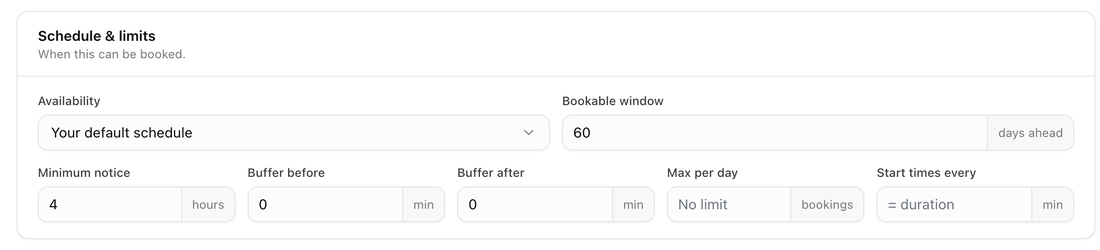
| Field | What it does |
|---|---|
| Availability | The schedule bookers pick times from: Your default schedule or any schedule from the Availability tab. For an organization event type hosted by someone else, this shows Host's default schedule and the note that the host manages it from their Availability tab. |
| Bookable window | How many days ahead a booker can pick a time. Starts at 60 days ahead; at least 1. |
| Minimum notice | How many hours from now the first bookable time can be. |
| Buffer before | Minutes kept free before each booking. Other bookings and busy time are pushed away by this much. |
| Buffer after | Minutes kept free after each booking. |
| Max per day | The most bookings this event type accepts on one day. Leave it empty for No limit. |
| Start times every | How often start times are offered, in minutes. Empty means the duration itself (= duration); at least 5. |
Tip: A 30-minute event type with Start times every set to 15 offers 9:00, 9:15, 9:30 and so on; left empty it offers 9:00, 9:30, 10:00. Buffers apply against everything busy, including bookings on your other event types.
Each of these starts from your defaults in Settings. See Defaults for new event types.