
Questions, confirmation and sharing
For anyone who wants to ask bookers something, decide what happens after they book, or hand out the link. The Questions & intake, After booking and Sharing sections of the event type editor.
Questions & intake
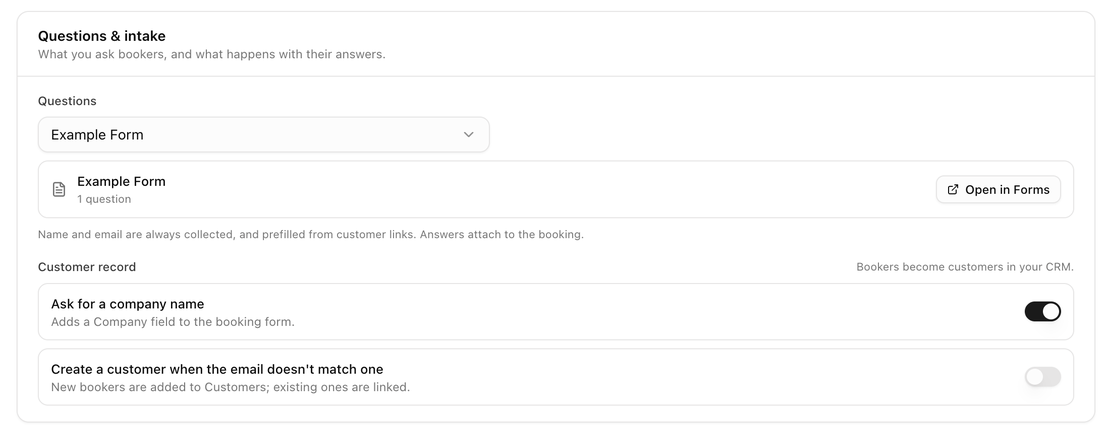
Name and email are always collected, and are prefilled when a booker arrives through a customer link. Everything else is asked with a form from the Forms module.
Ask questions with a form
- Under Questions, open the Use a form picker and choose a form, or keep No intake questions.
- The chosen form appears as a card with its name and question count. Open in Forms takes you to the form to change the questions. A form that is switched off shows Inactive and should be reactivated before you share the link.
- Answers attach to the booking. You see them in the booking's Intake answers section. See Open a booking.
If you do not have a suitable form yet, create one in Forms first, then pick it here.
Customer record
Bookers become customers in your CRM when you want them to.
| Toggle | What it does |
|---|---|
| Ask for a company name | Adds a Company field to the booking form. |
| Create a customer when the email doesn't match one | New bookers are added to Customers; bookers whose email already matches a customer are linked to that record. |
| Tag new customers with | Appears when the toggle above is on. Pick existing tags or type a New tag… and click Add. New customers created from bookings get these tags. |
After booking
| Setting | What it does |
|---|---|
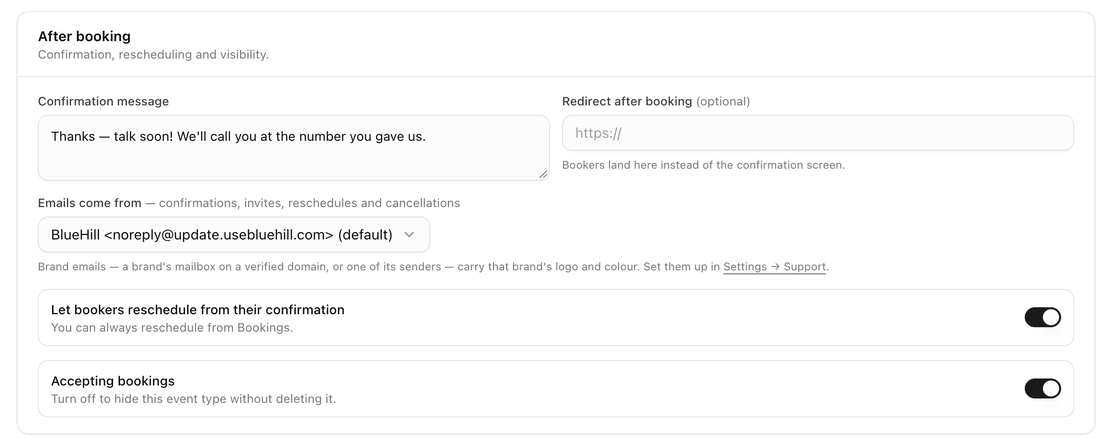
| Confirmation message | Text shown on the confirmation screen after booking, for example Thanks — we'll review your answers before the call. |
| Redirect after booking | A web address, starting with https://. Bookers land there instead of the confirmation screen. |
| Emails come from | Which address sends the confirmation, invite, reschedule and cancellation emails: the platform address (the default) or one of your brand's emails. Internal team members only. |
| Let bookers reschedule from their confirmation | Gives bookers a reschedule link on their confirmation and in their email. You can always reschedule from Bookings yourself. |
| Accepting bookings | Turn off to hide the event type without deleting it. |
Send emails from a brand address
Brand emails carry that brand's logo and colour. The picker lists the platform address first, then each usable brand email as Brand · Name address. A brand email is a mailbox on one of the brand's verified domains, or one of its senders; both are set up in Settings → Support.
If the chosen address can no longer send, for example because its domain is no longer verified, the editor shows a note that emails go out from the platform address until that is fixed or you pick another.
Sharing
Sharing gives you three ways to let people book.

| Tile | What it gives you |
|---|---|
| Copy link | The public link, for example /book/jane/intro-call. Anyone with it can book. The tile reads Claim a handle first until a personal event type has a handle behind it. |
| Embed | Code to put the booking page on your own website, inline, as a popup or as a floating badge. See Embed a booking page. |
| Customer link | A private link made for one customer, prefilled with their details and with its own limits. See Create a customer link. |
All three tiles are unavailable until the event type is saved for the first time (Save the event type first).
Next: Work with bookings.