
Schedule a meeting or block time
For hosts who want to put a meeting on the calendar themselves, or keep a stretch of time free from bookings. Both start from the Bookings tab.
Three ways to start
- Click New meeting or Block time in the toolbar. The dialog opens at noon on the day in view.
- In Day or Week view, click an empty half hour to start there.
- Drag across the grid to pick an exact range. The selection snaps to 15 minutes, the grid scrolls as you reach its edge, and the dialog keeps the dragged start and end.
Each dialog opens with a Meeting | Block time switch at the top. Flip it to turn one into the other; the date and times carry over.
Schedule a meeting
New meeting books a time on your calendar with the event type's location and emails, like a booking through your page, except that you pick the time and your working hours do not apply.
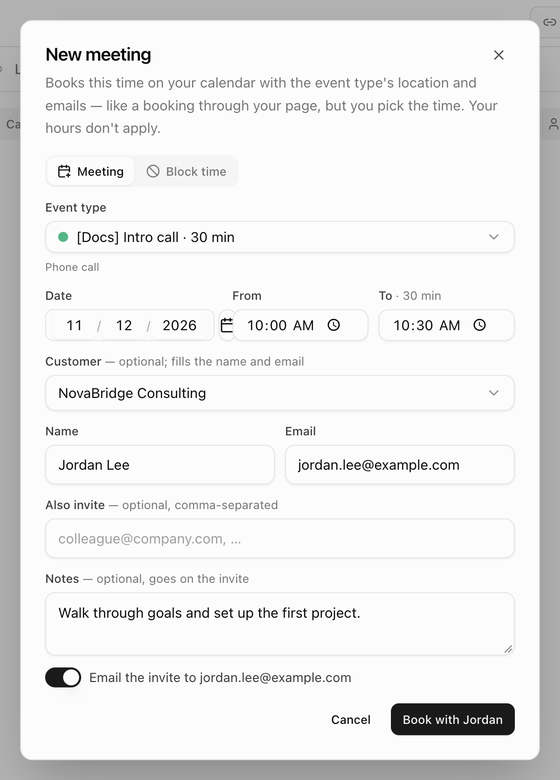
| Field | What to enter |
|---|---|
| Event type | One of your event types that is accepting bookings, shown as Title · 30 min. Its location appears underneath. Picking a team event type books it on you. |
| Date, From, To | When to meet. Changing From keeps the length; To shows the length next to it. The length starts as the event type's duration unless you dragged a range. |
| Customer | Optional. Search by name or company; recent customers are listed before you type. Picking one fills Name and Email if they are still empty and links the booking to the customer. |
| Name, Email | Who you are meeting. Both are required. |
| Also invite | Optional guest emails, separated by commas. |
| Notes | Optional. Goes on the invite. |
| Email the invite to … | On by default. Turn it off to add the meeting quietly; the invitee then gets no confirmation or invite. |
Click Book with Name. The button is unavailable until an event type, a date, a length of at least five minutes, a name and a valid email are in place. A Meeting booked with Name message confirms it.
When the time is taken
- If the time overlaps one of your own bookings or blocks, an amber note names it and adds You can still book it — nothing else moves. You can go ahead.
- If the time is busy on a connected calendar or on another of your bookings, BlueHill refuses once with You're busy then. and the button turns into Book anyway. Change the time to clear it, or book anyway.
A meeting booked this way behaves like any booking: it appears under Bookings, can be rescheduled, followed up or cancelled, and gets a Zoom or Meet link when the event type calls for one. Its Activity reads Scheduled by you from the calendar.
Block time
Blocked time cannot be booked over and shows as busy on your calendar. Use it for focus time, lunch, time off or travel.
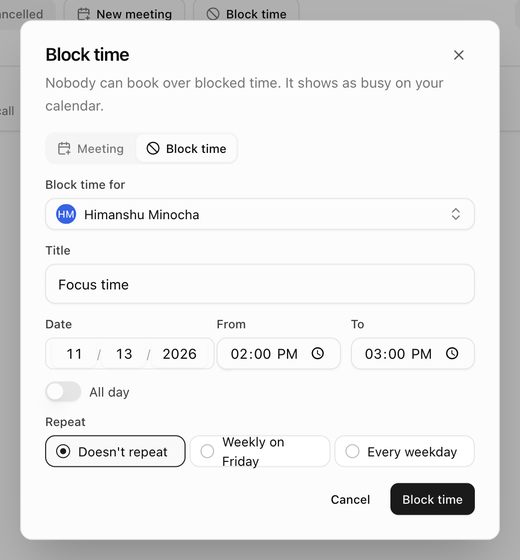
| Field | What to enter |
|---|---|
| Block time for | Admins see this when more than one person on the team can be booked. Pick a teammate to block their calendar instead of yours. |
| Title | For example Focus time, lunch or out of office. Left empty, the block is called Blocked. |
| Date, From, To | When. A new block starts as one hour. |
| All day | Blocks the whole day; From and To are disabled. |
| Repeat | Doesn't repeat, Weekly on Monday (the chosen weekday) or Every weekday. |
If the block overlaps bookings you already have, an amber note counts them and names the bookers: existing bookings stay, and no new ones will be offered there. Click Block time. A Time blocked message confirms it (Time blocked for Name when you blocked a teammate's time).
Edit or remove a block
- Click the block in the list or on the grid. Only blocks you are allowed to change open; in the Everyone view, other hosts' blocks are labelled with their names and cannot be edited.
- In Edit blocked time, change the fields and click Save changes, or click Remove block to delete it. Removal happens at once, with no confirmation, and a Block removed message confirms it.
A block that repeats shows This is part of a repeating block. Changes apply to the whole series. Edits and removal affect every occurrence.
Tip: Blocked time is for one-off gaps. For a day you never work, change your weekly hours instead. See Set your availability.
Next: Customer links and embed.