
Meetings on the calendar, customer records and tickets
For anyone who works mostly in Calendar, Customers or Support and wants to see or book meetings from there, without opening Scheduling.
On the Calendar page
Every booking creates an event on your BlueHill calendar, titled Event type with Booker, in the event type's colour, with the Zoom or Meet link inside. Blocked time appears as an ordinary event, called Blocked unless you named it. Both are exported to your Google Calendar when it is connected. Collective meetings appear on every host's calendar.
The calendar sidebar has two Scheduling sections:
- Availability: Show my availability shades the hours outside your working hours in the Week and Day views, and Edit availability opens the Availability tab. See Set your availability.
- Booking links: up to five of your event types, each with Copy link and Open, and a Manage link to the Event types tab. Until you have a handle it reads Claim your booking link, and until you have an event type, Create an event type.
When you create an event from the calendar, the quick-create popover's Start from event type picker prefills the title, description and length from an event type and turns on Zoom when the event type meets there. This makes a calendar event, not a booking; use New meeting on the Bookings tab for a booking. See Schedule a meeting.
On a customer or contact record
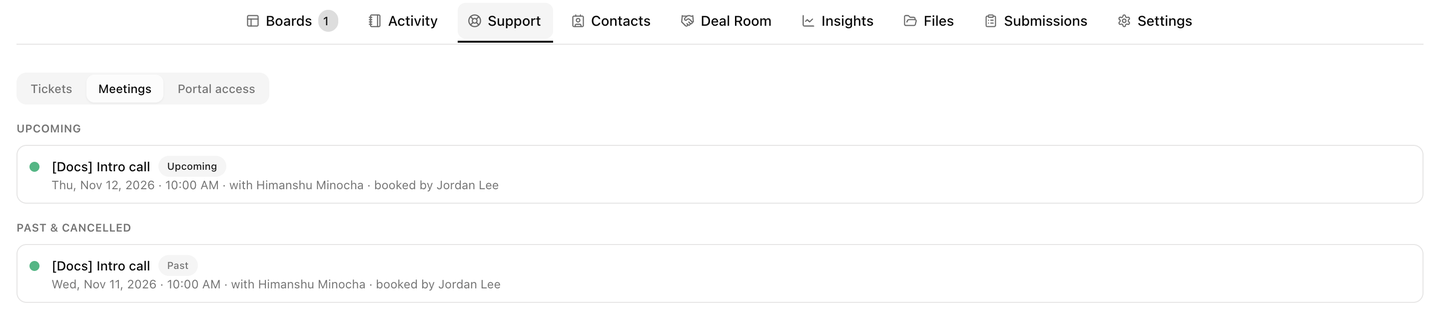
- Open a customer and choose the Support tab. The Meetings pane lists the customer's bookings under Upcoming and Past & cancelled, each with the event type, a status badge, the time, the host, who booked it, a link to the ticket it came from and Join for upcoming meetings. With none yet it reads No meetings yet and suggests sending a booking link from a ticket reply or from Scheduling → Links.
- A contact record shows the same list in a Meetings card.
A booking is tied to a customer when the booker used a customer link, when their email matched a customer, when the event type creates customers, when a host linked a customer in New meeting, or when the link or booking came from that customer's ticket.
Book from a support ticket
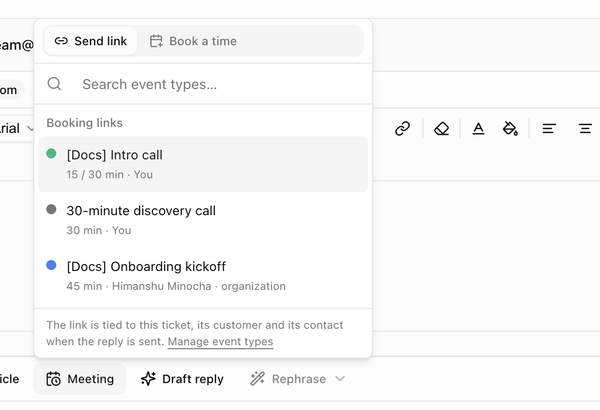
The reply composer, and the New email window, have a Meeting tool. Its tooltip reads Send a booking link or book a time. It appears once you have at least one event type.
Send a booking link
- Click Meeting and keep Send link selected.
- Pick an event type from the list. Each shows its length and host (You, or a teammate for an organization event type). An event type with no public page yet cannot be chosen.
- A link labelled Book: Event type is inserted into the reply. When you send, it becomes a private link tied to this ticket, its customer and its contact, so the booking lands on their records and on the ticket.
Book a time
- Click Meeting and switch to Book a time. Pick an event type.
- In the Book a time dialog, set the Date, From and To, choose Their timezone, enter Their name and optional Notes for the invite. The line underneath confirms which address the meeting is confirmed to; it is the ticket's requester.
- While you edit, BlueHill checks your calendar. If you are busy then, an amber note says so; switch on Book it anyway to keep the time.
- Click Add to reply. A chip under the editor summarises the meeting; Change the meeting and Remove the meeting edit or drop it. One meeting per reply.
- Send the reply. The reply is the confirmation: it carries a Meeting confirmed block with the title, host, time, location and a Join meeting link, plus Reschedule or cancel, and an invite.ics attachment. The booking is created at the moment you send; nothing exists while the reply is a draft.
Your working hours do not apply here, and you receive no separate email about a meeting you booked yourself. If you are busy at send time and did not choose Book it anyway, nothing is sent, your draft is kept, and a message asks you to press Send again or change the meeting.
The ticket's Meetings card
A ticket with meetings shows a Meetings card in its side rail: up to five rows with the event type, an Upcoming, Past or Cancelled badge, the time, the host, who booked it and Join. A Scheduling link opens the Bookings tab. The ticket timeline records Meeting booked, Meeting rescheduled and Meeting cancelled entries as things change.
From search
The Scheduling page's search box finds bookings by booker, customer, event type or host across every host and every status, so it is often the fastest way to open one. See Search.
Next: FAQ and troubleshooting.