
Team and pools
For internal team members who want to see who can be booked, and for anyone setting up round-robin or collective event types that share bookings across several hosts. The Team tab.
Who can be booked
The Team tab is for internal team members. Anyone else sees Team isn't available. Only internal team members can see who can be booked.
The Hosts table lists the teammates who can be booked. Each has their own handle, schedule and calendar; organization event types are shared under Event types.
| Column | Shows |
|---|---|
| Member | Name and email, with (you) on your own row. |
| Handle | The personal booking address, /book/handle, or No handle yet. |
| Role | The teammate's role in the workspace. |
| Schedule | The name of their default schedule, or Not set up, with a green check when their Google Calendar or Zoom is connected. |
| Event types | How many event types they host. |
| Upcoming | How many bookings they have coming up. |
- A row's ⋮ menu offers Copy booking link and Open booking page. Both are unavailable until the person has claimed a handle.
- Add host takes you to the Team page to invite someone to the workspace. Each host sets up their own event types, schedule and connected calendars from their Scheduling page.
Pools
A pool is a group of hosts that team event types draw from. A round-robin event type picks one member per booking; a collective event type books all of them together. See Hosting.

Each pool card shows the pool's name, how it distributes bookings (for example Round-robin · fewest this month · weighted), its members with their weight and a bar of their confirmed bookings this month on the pool's event types, and which event types use it (Used by Onboarding kickoff or Not used yet). The card's ⋮ menu offers Edit pool and Delete.
With none yet, the section reads No pools yet. Create one to host an event type round-robin across a few teammates, or collectively with all of them.
Create a pool
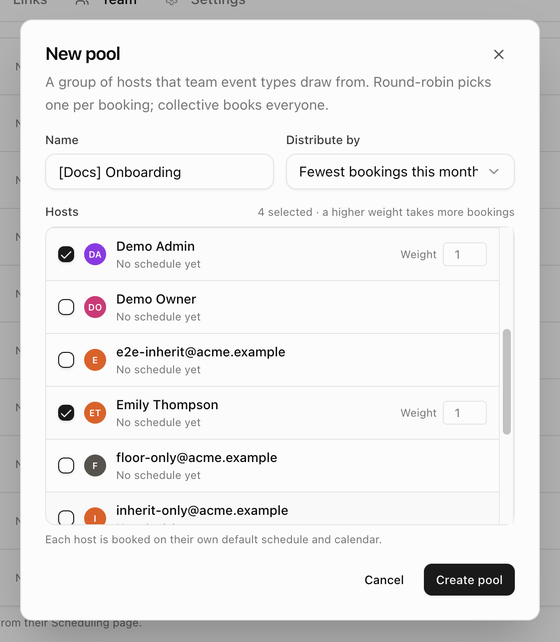
- Click New pool.
- Enter a Name, such as Sales, Support or Onboarding.
- Choose Distribute by: Fewest bookings this month (the default), Fewest upcoming bookings or Random (weighted). This can be changed per event type later.
- Under Hosts, tick the teammates who belong to the pool. A Weight field (1 to 100) appears next to each ticked host; a higher weight takes more bookings. The counter reads N selected · a higher weight takes more bookings.
- Click Create pool. A Pool created message confirms it.
Each host is booked on their own default schedule and calendar, so make sure every member has set their availability. See Set your availability.
Use a pool on an event type
Open the event type, choose Round-robin or Collective under Hosting and pick the pool. You can untick members and change weights for that event type; those changes are saved back to the pool. See Round-robin.
How round-robin picks a host
- Fewest bookings this month sends the next booking to the host with the least load per unit of weight, counting confirmed bookings this month on the pool's event types. Ties go to the host with fewer bookings overall, then to pool order.
- Fewest upcoming bookings looks only at bookings still to come.
- Random (weighted) draws a host at random, with weights as odds.
- A time is offered while any ticked host is free. If the booker picked a host, that host takes it. Rescheduling keeps the same host.
Delete a pool
- Open the pool's ⋮ menu and choose Delete.
- If event types still use the pool, the dialog names them and asks you to switch those event types to another pool or Just you first; Delete stays unavailable until you do.
- Otherwise the dialog reads Existing bookings keep their hosts. You can't undo this. Click Delete. A Pool deleted message confirms it.
Next: What the booker sees.