
The Scheduling page at a glance
Updated Nov 19, 2026·3 min read
For anyone opening Scheduling for the first time. Learn the header, the six tabs and the search box before you set anything up.
Open Scheduling
- Open Sales → Scheduling. The page address is /scheduling.
- The page opens on the Bookings tab. The tab you are on is kept in the page address, so a bookmarked or shared link opens the same tab.
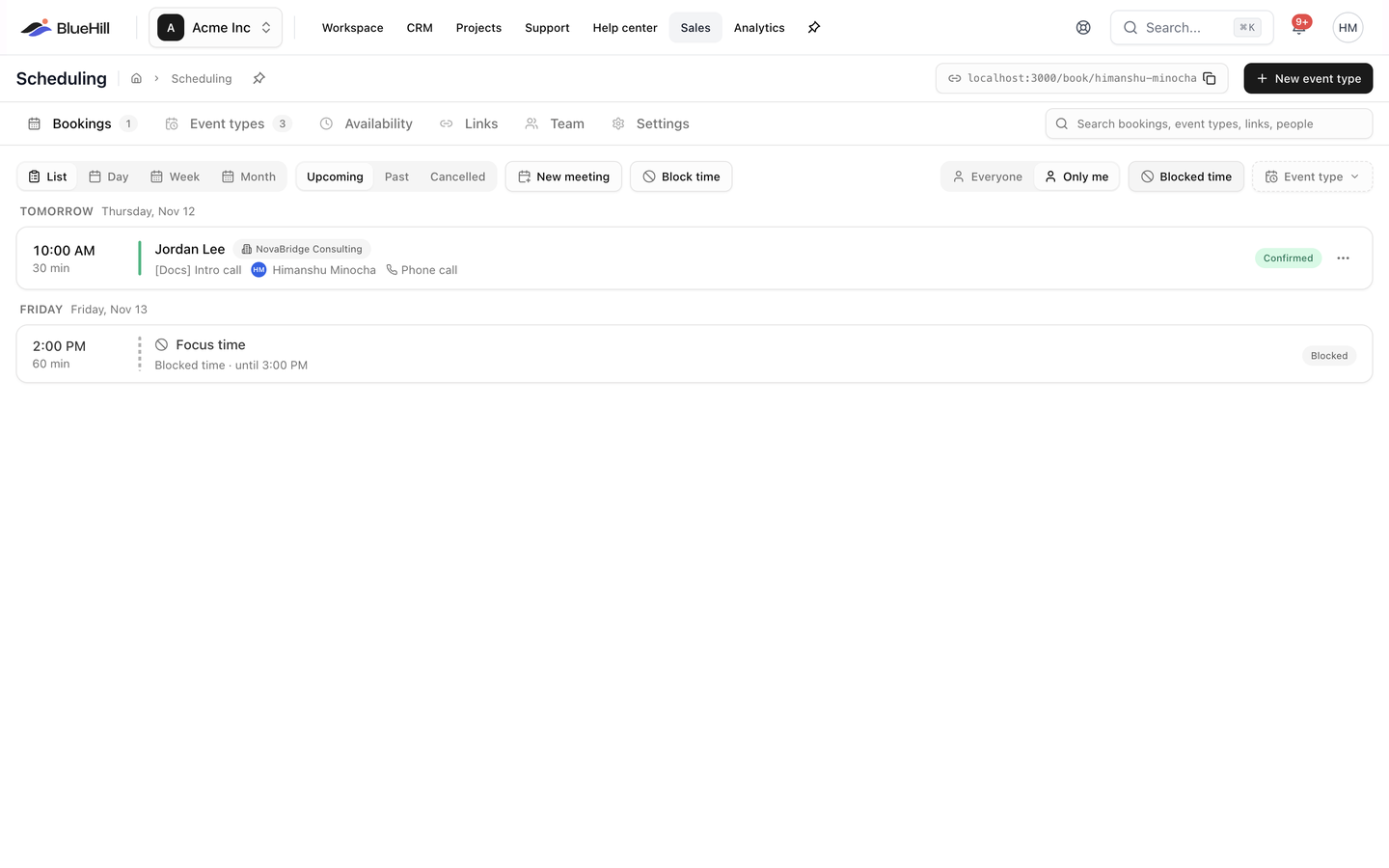
The header
The header shows, from left to right:
- The page title, Scheduling.
- Your booking handle button. Until you have a handle it reads Claim your booking handle and takes you to the Settings tab. Once you have one, it shows your personal booking address, such as app.example.com/book/jane, with a copy icon. Click it to copy the address; a Booking link copied message confirms it.
- New event type, which opens the event type editor. See Create an event type.
The six tabs
| Tab | What it holds | Badge |
|---|---|---|
| Bookings | Everything booked with you, as a list or a day, week or month calendar, plus blocked time. See Work with bookings. | Number of upcoming bookings |
| Event types | The meetings people can book, each with its own link. See Create an event type. | Number of event types |
| Availability | Your weekly hours, date overrides and the calendars that count as busy. See Set your availability. | |
| Links | Private customer links and embed codes. See Customer links and embed. | Number of active links |
| Team | Who on your team can be booked, and the host pools team event types draw from. See Team and pools. | |
| Settings | Your handle, booking pages, Google Calendar and Zoom, and defaults for new event types. See Set up your booking page. |
A badge is hidden when its count is zero.
Search
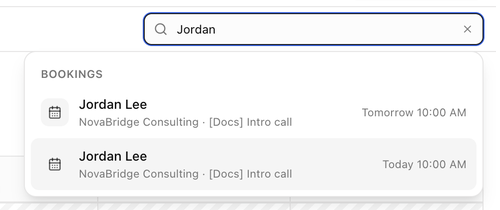
The search box at the right of the tab row searches across the whole module. Its placeholder reads Search bookings, event types, links, people.
| Group | Matches on | Opening a result |
|---|---|---|
| Bookings | Booker name or email, customer, event type, host. Covers every status and every host. | Switches to Bookings and opens the booking. |
| Event types | Title, link, description, location, brand. | Opens the event type editor. |
| Customer links | Customer, event type, status. | Switches to the Links tab. |
| People | Name, email, handle. | Switches to the Team tab. |
- Each group shows up to five results. The right-hand text tells you the booking's day (Today 10:00 AM, Tomorrow, Mon, Nov 10 or Cancelled), an event type's public path, a link's status or a person's handle.
- Press Enter to open the first result, or Esc to clear the search. No matches for "…" means nothing fits.
Who sees what
- Everyone with access to Scheduling has their own event types, schedules, links and bookings.
- Internal team members also see Organization event types, the organization's booking pages and the Team tab. Members outside the internal team see only their own event types, and the Team tab tells them Team isn't available.
- Admins can block time on a teammate's calendar. See Block time.
Next: Set up your booking page.
Was this article helpful?