
Customer links and embed
For anyone who wants to send one customer a private link with its own limits, or put a booking page on their own website. The Links tab and the embed dialog.
Three kinds of link
| Link | Who it is for | Where to get it |
|---|---|---|
| Public link | Anyone. /book/jane/intro-call books your event type on your schedule. | Copy link on the event type row or under Sharing in the editor. |
| Customer link | One customer. Their name and email are prefilled, the booking links to their record, and the link can have a usage limit, an expiry and settings of its own. | The Links tab, New customer link on an event type row, or the Customer link tile in the editor. |
| Embed | Visitors to your website. The booking page appears inside your page. | Embed code on an event type or link row, or the Embed tile in the editor. |
The Links tab
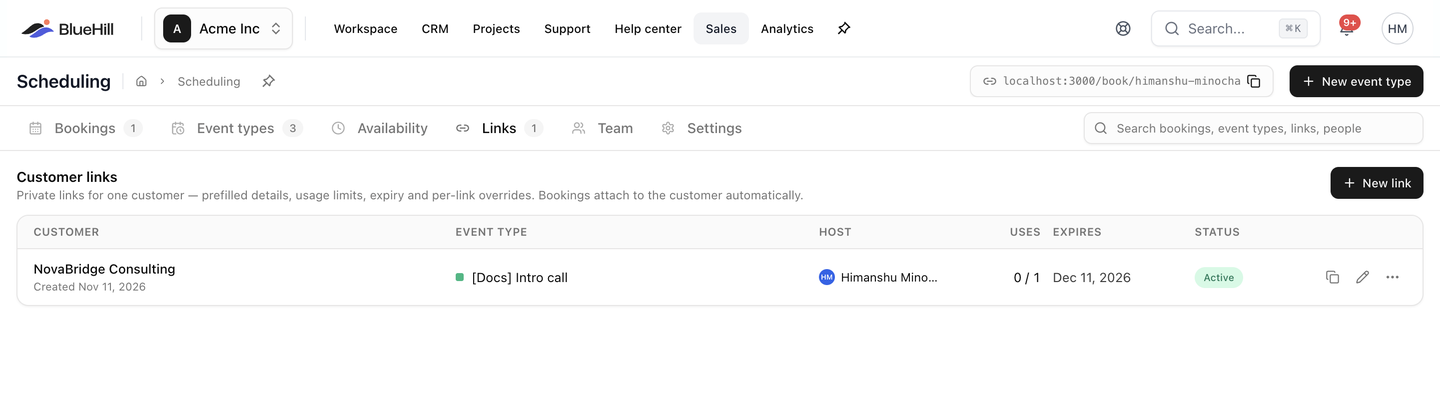
The Customer links table lists every private link you have made.
| Column | Shows |
|---|---|
| Customer | The customer the link was made for, and when it was created. |
| Event type | The meeting it books, with an Overrides pill when the link changes the event type's settings. |
| Host | Who takes the bookings: you, the organization event type's host, or the pool. |
| Uses | How many bookings have been made through it against its limit, for example 1 / 3 or 2 / ∞. |
| Expires | The expiry date, or Never. |
| Status | Active, Expired, Used up, Revoked or Inactive (the event type is hidden). |
Each row has Copy link and Edit buttons and a ⋮ menu with Open link, Embed code and Revoke. With no links yet, the tab reads No customer links yet and offers a New link button.
Create a customer link
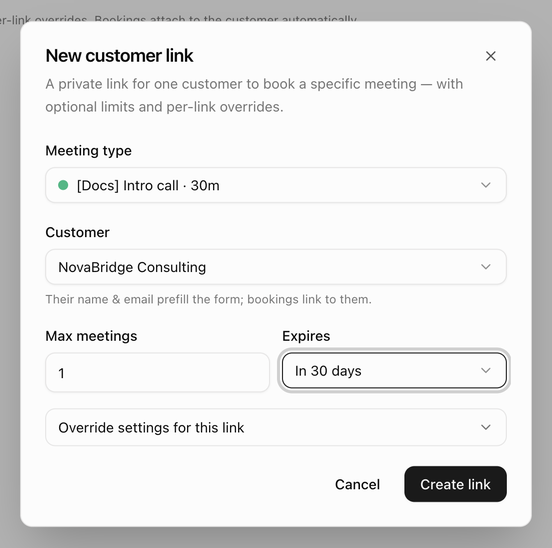
- Click New link on the Links tab, or New customer link on an event type's menu.
- Choose the Meeting type. Only event types that are accepting bookings and that you can edit are listed, as Title · 30m, with the organization or brand name after it where relevant.
- If the meeting is on Zoom and you have more than one Zoom account, choose the Zoom account, or keep Same as meeting type.
- Choose the Customer. Their name and email prefill the booking form, and the booking links to their record. A customer is required.
- Set Max meetings, or leave it empty for unlimited. Set it to 1 for a link that works once.
- Choose when it Expires: Never, In 7 days, In 14 days, In 30 days or Custom date….
- Optionally open Override settings for this link. See below.
- Click Create link. The dialog becomes Link ready to share: copy the address with Copy, read the summary (for example Usable 1 time · expires 12/11/2026) and click Done.
The link looks like /book/link/ followed by a long token, so it cannot be guessed. Send it to the customer yourself, or from a ticket reply. See Book from a support ticket.
Override settings for this link
Everything left on Inherit follows the event type. Change only what this customer needs.
| Section | What you can override |
|---|---|
| Availability | Which schedule's hours the customer can pick from. |
| Location | Zoom, Google Meet, Phone call, In person, Ask the invitee or No location, with the phone number or address where needed. |
| Durations | A different meeting length, in minutes. |
| Booking limits | Max bookings / day and Start times every (min). |
| After booking | A different confirmation message or redirect address. |
| Customer capture | Ask for company name, Create a customer from each booking and the tags to apply. |
Edit, copy or revoke a link
- Edit opens the same dialog; click Save changes when you are done. A Link updated message confirms it.
- Copy link copies the address; Open link opens it in a new tab so you can see what the customer sees.
- Revoke stops the link at once. The dialog Revoke this link? notes that The link stops accepting new bookings immediately. Existing bookings are not affected. Choose Revoke link or Keep it. Revoked links stay in the table with the Revoked status; a link cannot be deleted.
A customer who opens a link that no longer works sees This link is no longer available with the reason: it has expired, it has been used the maximum number of times, or it was revoked by the host.
Tip: Changing your handle never breaks customer links, because they use their own tokens rather than your handle.
Embed a booking page
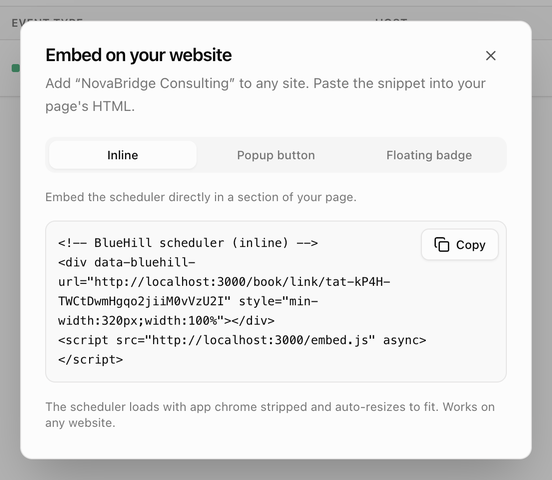
- Open Embed code from an event type row, a customer link row or the Embed tile in the editor.
- Pick a style:
| Style | What visitors see |
|---|---|
| Inline | The scheduler sits directly in a section of your page. |
| Popup button | A Book a meeting button that opens the scheduler in a window on top of the page. |
| Floating badge | A floating Book a meeting button in the corner of every page that carries the snippet. |
- Click Copy and paste the snippet into your page's HTML, where you want the scheduler or button to appear. An Embed code copied message confirms the copy.
The embedded scheduler loads without BlueHill's app frame or footer and resizes itself to fit the space. It works on any website.
Next: Team and pools.